
Edge Workspaces Chrome 插件, crx 扩展下载
Effortlessly organize and manage multiple projects or tasks by saving and restoring entire browsing sessions.
Edge Workspaces empowers Chrome users with advanced tab management:
* Preserve context: Save and restore entire browsing sessions
* Reduce clutter: Keep your browser organized by project or task
* Improve focus: Easily switch between different work contexts
* Automatic saving: Never lose your place with continuous workspace updates
* Keep in sync: Your workspaces stay in sync across computers via Google sync
Install Edge Workspaces to take control of your tabs and boost your productivity.
Ad-free and free to use, forever!
This extension is open source. Check out the GitHub repository: https://github.com/Elec0/chrome-edge-workspaces
## How to Use ##
## Creating a Workspace ##
1. Open the extension popup by clicking the icon in the toolbar (pinning the extension is recommended).
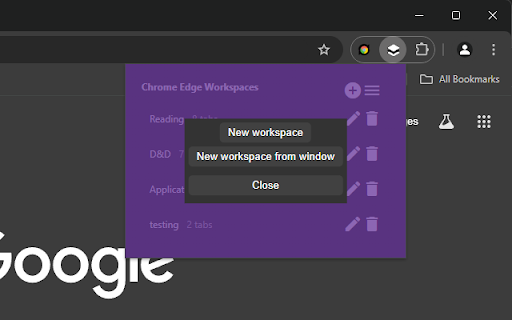
2. Click the "+" icon to open the new workspace modal.
3. Select either "New workspace" or "New workspace from window".
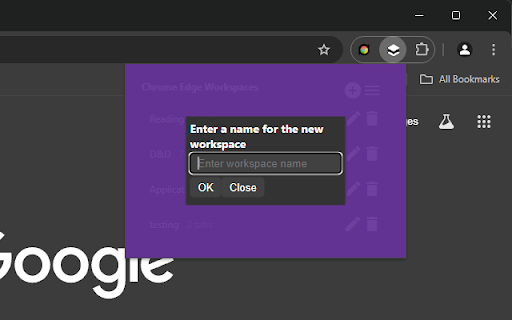
4. Enter a name for the workspace.
5. Click "OK".
6. A new Chrome window will open with the New Tab page.
7. All tabs in the current window will be saved to the workspace as you work.
8. Close the window when finished.
## Opening a Workspace ##
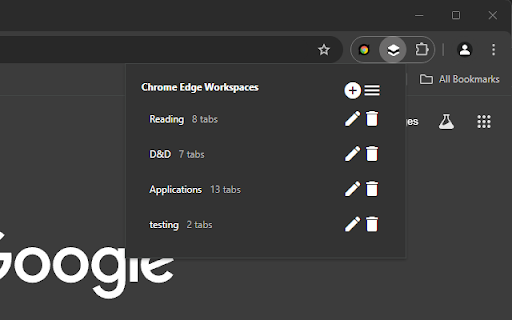
1. Open the extension popup.
2. Click on a workspace to open it.
3. The saved tabs will be opened in a new Chrome window.
## Managing Workspaces ##
- Click the trashcan icon to delete a workspace.
- Click the pencil icon to rename a workspace.
## Saving Workspaces as Bookmarks ##
- Ensure "Save workspaces to bookmarks" option is checked in Settings.
- Workspaces will now be copied to "Other bookmarks -> Edge Workspaces (read-only) -> [Workspace Name]".
- Note that changes to the bookmarks will **not** be reflected in the workspaces themselves, as they are just a copy.
- When installing a new version, make sure to open old workspaces at least once to allow for them to be saved as bookmarks.
## Importing/Exporting Workspaces ##
1. Open the extension popup.
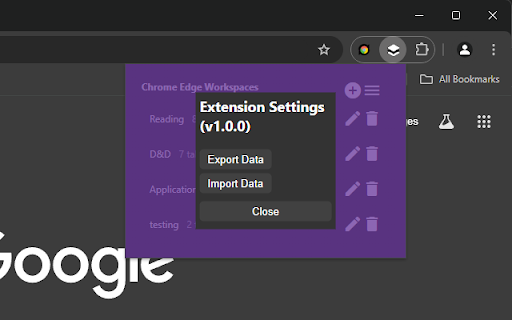
2. Click the hamburger icon to open the settings window.
3. Click "Export" to save all workspaces to a file.
4. Click "Import" to load workspaces from a file.
### Changelog ###
## v1.2.0 ##
- Add syncing of workspaces across computers, when signed in to Google sync
## v1.1.0 ##
- Add ability to save a copy of workspaces as bookmarks
| 分类 | 🛠️工具 |
| 插件标识 | feehlkcbifmladjmmpkghfokcngfkkkp |
| 平台 | Chrome |
| 评分 |
★★★★★
5
|
| 评分人数 | 1 |
| 插件主页 | https://chromewebstore.google.com/detail/edge-workspaces/feehlkcbifmladjmmpkghfokcngfkkkp |
| 版本号 | 1.2.0 |
| 大小 | 268KiB |
| 官网下载次数 | 237 |
| 下载地址 | |
| 更新时间 | 2024-12-05 00:00:00 |
CRX扩展文件安装方法
第1步: 打开Chrome浏览器的扩展程序
第2步:
在地址栏输入: chrome://extensions/
第3步: 开启右上角的【开发者模式】
第4步: 重启Chrome浏览器 (重要操作)
第5步: 重新打开扩展程序管理界面
第6步: 将下载的crx文件直接拖入页面完成安装
注意:请确保使用最新版本的Chrome浏览器
同类插件推荐
Edge Workspaces
Effortlessly organize and manage multiple projects

Tab Organizer - Workspaces
Tab Organizer - Workspaces: Group tabs, save &

Workspace Manager
Tab Manager and Productivity Extension - save tabs

Auto-Collapse Tab Groups
Automatically collapse unfocused tab groups.Are yo
SideTab Pro - Vertical Tabs
Vertical Tab Manager in Side PanelWhat's New:

标签分组扩展
自动为标签建立分组,保存标签和分组,并提供标签和分组的快捷键。除了常规的标签管理功能,此扩展特别增强

Browser Portable Workspaces
A powerful browser extension that saves and organi

TabXpert - 会话和标签页管理器
下一代会话和标签页管理器标签页管理 轻松将您的标签页组织到标签页组和工作会话中。 TabXpert

TabMagic - Bookmark & Tab Manager
Manage your tabs, bookmark the web, and share reso

Tabber - 标签组织器
通过将未使用的标签分组到有组织的组中来简化您的浏览厌倦了拥有数十个打开的标签页吗?Tabber为您而

Tidy Tab Groups
Tired of tab clutter? Effortlessly group, collapse

Tab Deck - 标签页/标签组管理器
一款集多功能于一身的标签页/标签组管理器,帮助你有效地管理、组织您的标签页/标签组Tab Deck

TABLERONE tab manager
多合一标签管理器,用于保存标签、恢复会话和组织书签。打开太多标签会降低您的工作效率。您的计算机变慢,