
Otter.ai: Record and transcribe meetings Chrome 插件, crx 扩展下载
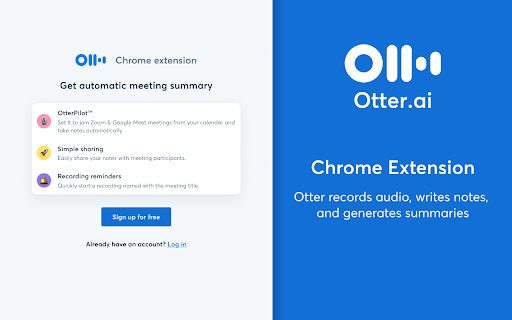
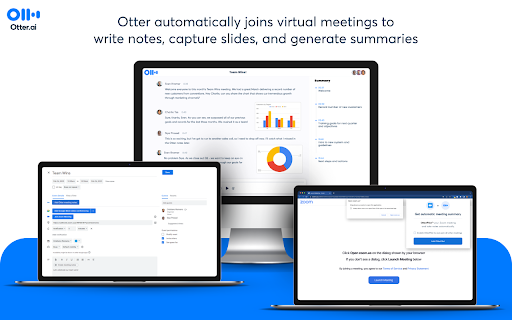
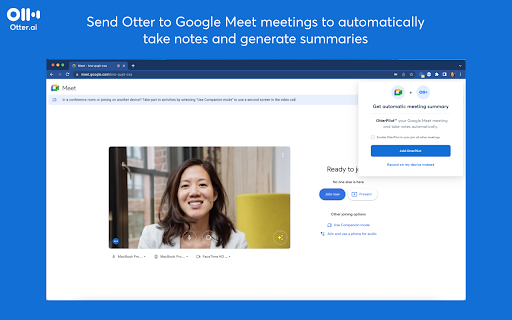
Get a meeting assistant that records audio, writes notes, automatically captures slides, and generates summaries.
Otter leverages its proprietary AI to write meeting notes in real time and share them with everyone so they can collaborate during meetings. When connected to your Microsoft Outlook or Google calendar, Otter can automatically join virtual meetings with OtterPilot™ to record and transcribe the meeting. It also shares live transcripts with meeting participants so that everyone can collaborate by adding highlights and comments.
The Otter.ai Chrome extension intelligently detects when you open a virtual meeting link in your browser, or add one to a calendar event, and provides a quick and easy way to OtterPilot that meeting – ensuring you never miss a key moment from the meeting.
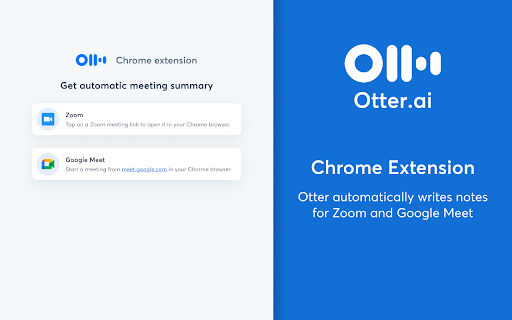
The Otter.ai Chrome extension is compatible with Zoom, Google Meet, and Google Calendar.
HOW TO PIN THE EXTENSION AND LOG IN:
- After downloading, tap the extension icon, then tap the pin icon to add it to your browser bar.
- Tap the pinned Otter logo in your browser bar to log in to or sign up for an Otter account.
HOW TO USE WITH ZOOM:
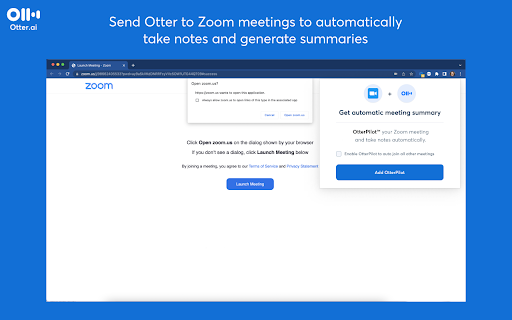
- Open a Zoom URL in your Chrome browser.
- An Otter extension pop-up will open and ask if you want to OtterPilot the meeting to get an
automatic meeting summary (however, if OtterPilot is already scheduled to attend the
meeting, you will not receive this pop-up).
- If you OtterPilot your meeting, your live notes will open in a new tab in your browser.
- Your current meeting notes will be auto-shared to your calendar guests, and you have the
option to enable OtterPilot to join all future meetings from the same pop-up.
- Go to Settings to edit the share settings for all of your future meetings.
HOW TO USE WITH GOOGLE MEET:
- Open a Google Meet URL in your Chrome browser.
- An Otter extension pop-up will open and ask if you want to OtterPilot the meeting to get an
automatic meeting summary.
- From the same pop-up, you also have the option to manually record on your device.
- If you OtterPilot your meeting, a small in-window pop-up (only visible to you) with your live
meeting notes will appear in your Google Meet interface.
HOW TO USE WITH GOOGLE CALENDAR:
- After signing in to the Otter extension, when you open Google Calendar, an option to “Add
Otter Meeting Notes” will appear anytime you create or edit a calendar event.
- Upon tapping the button to “Add Otter Meeting Notes”, one of two things will happen:
- If your calendar is connected in Otter and there is a Zoom or Google Meet link in your
calendar event, OtterPilot will automatically be sent to that meeting.
- If there is not a Zoom or Google meet link in your calendar event, a meeting note will be
added with instructions to manually record on your device.
CONTACT US
• Support: https://help.otter.ai
• Facebook: @OtterAI
• LinkedIn: Otter.ai
• Twitter: @Otter_ai
• Web: otter.ai
| 分类 | 📝工作流程与规划 |
| 插件标识 | bnmojkbbkkonlmlfgejehefjldooiedp |
| 平台 | Chrome |
| 评分 |
★★★★☆
4.6
|
| 评分人数 | 195 |
| 插件主页 | https://chromewebstore.google.com/detail/otterai-record-and-transc/bnmojkbbkkonlmlfgejehefjldooiedp |
| 版本号 | 2.18.4 |
| 大小 | 1.45MiB |
| 官网下载次数 | 100000 |
| 下载地址 | |
| 更新时间 | 2025-02-21 00:00:00 |
CRX扩展文件安装方法
第1步: 打开Chrome浏览器的扩展程序
第2步:
在地址栏输入: chrome://extensions/
第3步: 开启右上角的【开发者模式】
第4步: 重启Chrome浏览器 (重要操作)
第5步: 重新打开扩展程序管理界面
第6步: 将下载的crx文件直接拖入页面完成安装
注意:请确保使用最新版本的Chrome浏览器
同类插件推荐
Meet Transcript
Record Google Meet captions, chat messages, and sc

iTour Video Translation
This extension translates video's audio on the
Jasper Everywhere Extension
The Jasper browser extension provides access to Ja

Tactiq: ChatGPT 会议总结
在Google Meet、Zoom和MS Teams上体验超准确的ChatGPT会议摘要和转录。再也

Meeting Assistant & ChatGPT summary, by Noty.ai
Meeting Assistant & ChatGPT summary. Browser e

Google Meet Transcripts & AI Summary
Google Meet Transcription, AI Summary and Insight.

Scribbl: AI Meeting Notes for Google Meet
Scribbl can record, transcribe, and generate incre

Textify
Live stream speech-to-text captions between users

Scribe: AI Documentation, SOPs & Screenshots
Auto-generate step-by-step guides, just by clickin
Otter.ai: Record and transcribe meetings
Get a meeting assistant that records audio, writes

Record, Transcribe & ChatGPT for Google Meet
Automatically record & transcribe Google Meet
Fathom AI Note Taker for Google Meet
Records, transcribes & summarizes meetings FRE
Compose AI: AI-powered Writing Tool
Accelerate your writing with AIGenerate any text u